If you want to control a Roku player or Roku smart TV by voice, you have lots of options. Many Roku devices include a remote control that supports voice commands, and you can also control Roku hands-free with an Amazon Echo or Google Home smart speaker.
But along with all those voice control options comes several limitations, especially when it comes to launching videos or TV channels directly. Knowing what Roku can and can't do will spare you some headaches when you're barking out orders.
We'll talk through how to get set up with Roku voice controls, a list of supported voice commands, and some tips for making your experience smoother.
How to use the Roku voice remote
If your Roku player has a microphone button under its directional pad, you can hold it down to record a voice command. Current Roku players that have a voice remote include the Roku Premiere+, Roku Streaming Stick, Roku Streaming Stick+, and Roku Ultra.
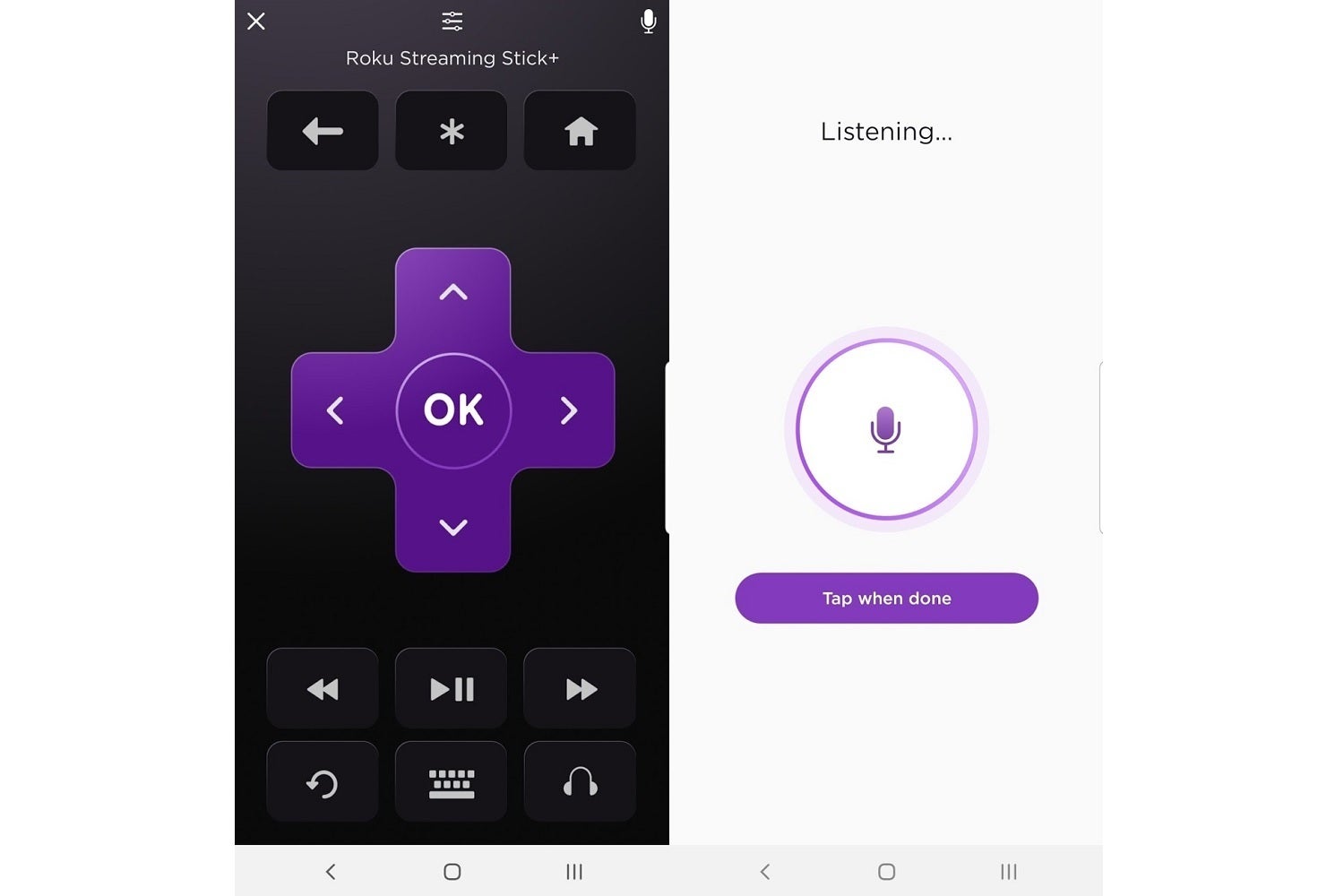
For most Roku players from 2014 onward—including those without a voice remote—you can also use the Roku mobile app for iOS or Android for voice control. Just tap on the "Remote" tab in the app, and then look for the microphone button in the top-right section of the screen. Alternatively, you can buy a stand-alone Roku Voice Remote at Roku.com for $20.
 Jared Newman / TechHive
If your Roku's remote doesn't support voice search, and you don't want to buy one, try the mobile Roku app.
As for what you can do with voice controls, Roku supports the following commands:
- Play/Pause/Rewind/Fast Forward
- "Go Home," which returns to the home screen
- "Replay," which jumps back seven seconds and enables closed captioning
- "Launch [app name]"
- "Search for [actor/director/movie/TV show/genre]"
- "Search for free [movies/TV shows/genres]"
Roku smart TVs support these additional controls:
- "Turn the volume up/down"
- "Set volume to [percentage]"
- "Turn the TV off/on"
- "Tune to [channel]" (if an antenna is plugged in)
- "Switch to [TV input number or name]"
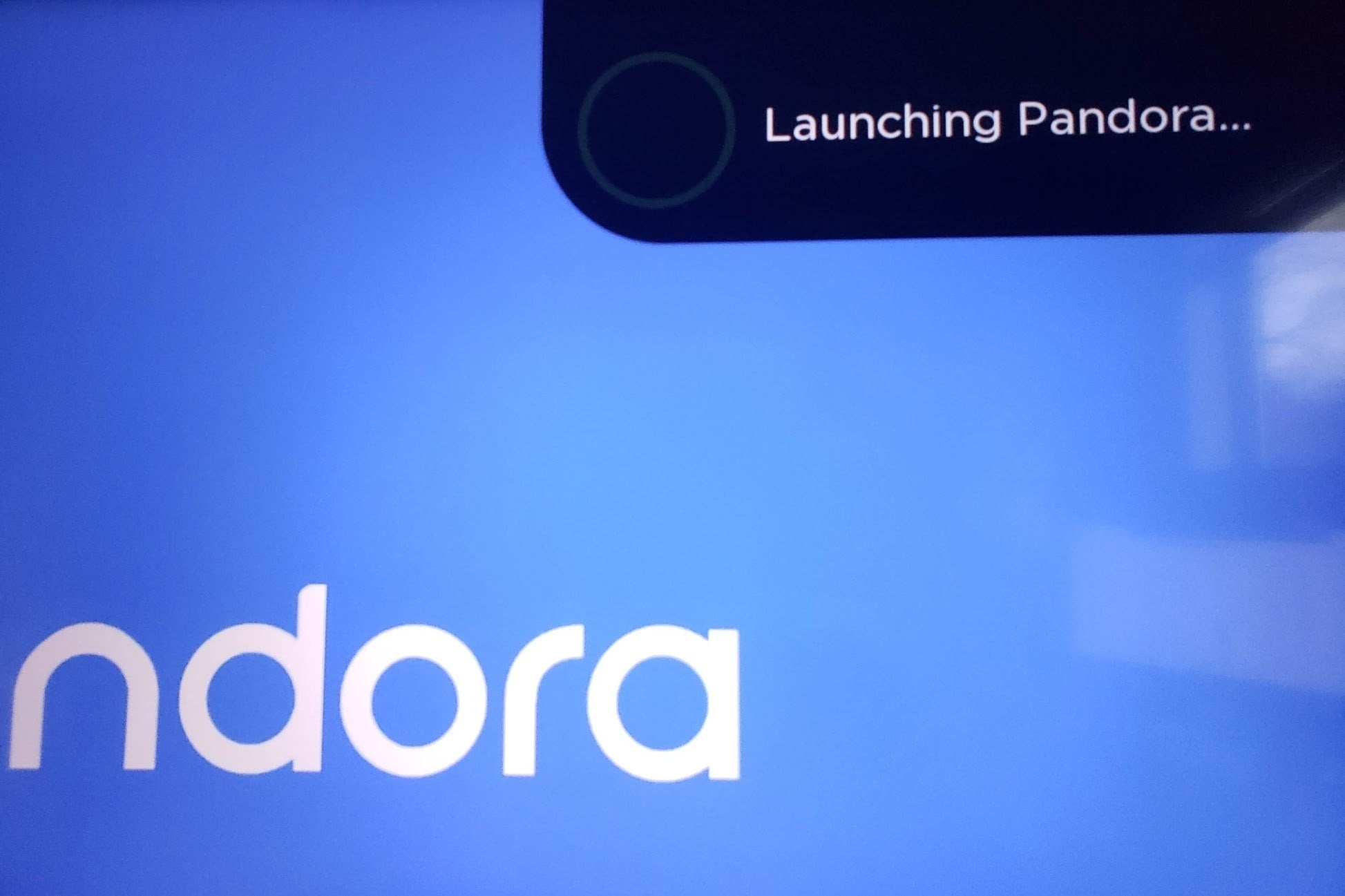
If you have Pandora, iHeartRadio, or TuneIn installed, you can also use voice commands to play internet radio stations or podcasts. Pandora Premium subscribers can play specific artists, albums, or playlists as well. Just say "play [music/podcast] in [Pandora/iHeartRadio/TuneIn" to start listening.
 Jared Newman / TechHive
Music and podcasts are the only types of content you can launch directly by voice on Roku right now.
The main limitation here is that you can't ask Roku to play a specific video or launch a specific live TV channel, like you can with certain apps on Apple TV, Amazon Fire TV, and Android TV devices.
How to use Amazon Alexa with Roku
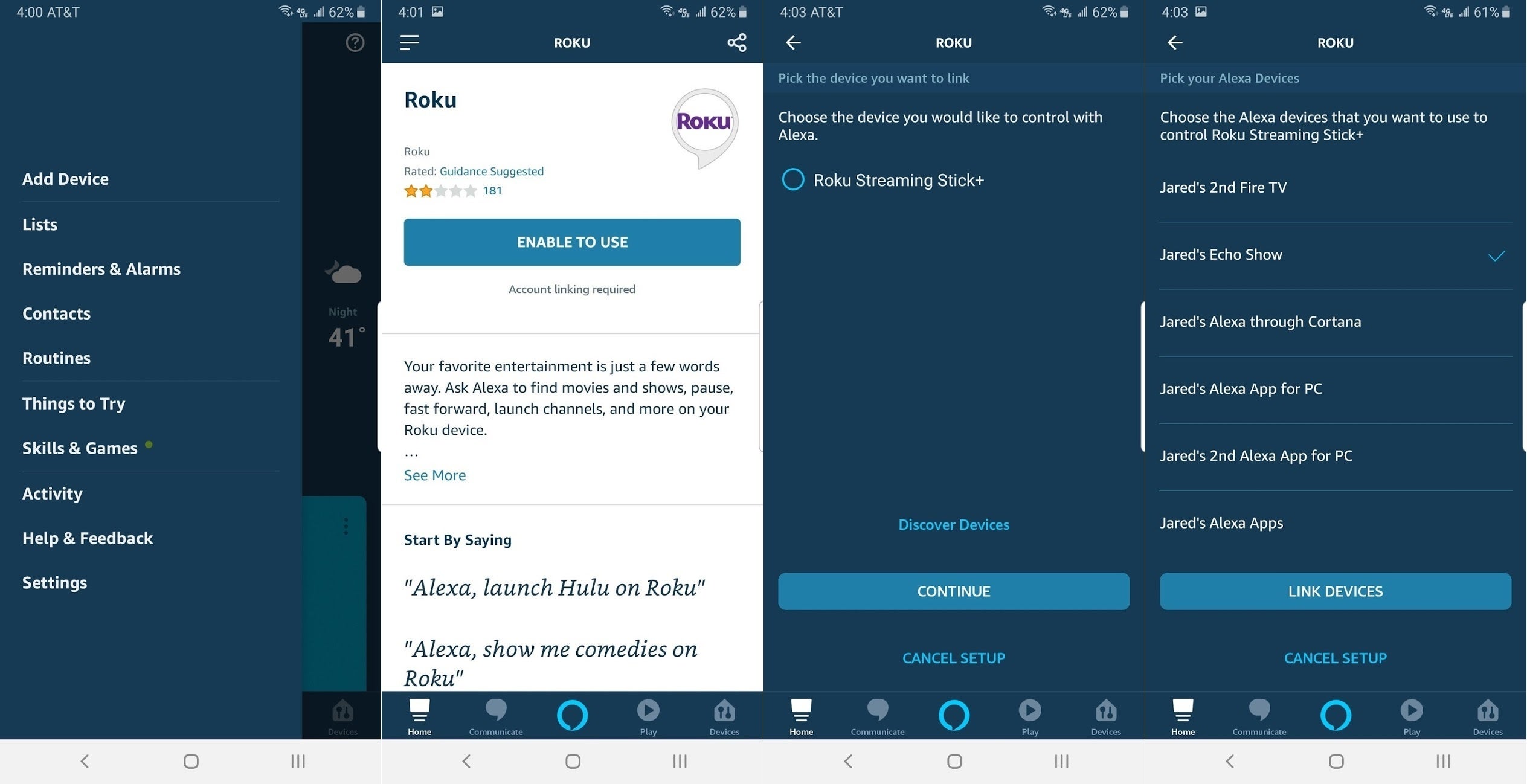
For folks who own an Amazon Echo or other Alexa-powered speaker, Roku offers an Alexa skill for hands-free voice control. Here's how to enable it:
 Jared Newman / TechHive
- Open the Alexa app on your phone, select "Skills & Games" from the sidebar menu, and then search for Roku. If you're on a computer, just visit this link in a web browser.
- Select "Enable," and then sign into your Roku account.
- Accept the terms, and then select the Roku player you want to connect. (Unfortunately, Alexa devices can only control a single Roku player or TV.)
- Finally, select the Alexa devices that you'd like to use with Roku and hit "Link Devices." (If you're setting this up from a web browser instead of the Alexa app, you'll need to reload the Skill page, select "Manage in TV & Video," select Manage & Link Devices, and then choose your Alexa devices to complete the setup.)
You can now ask Alexa to perform most of the commands Roku's own voice remote supports, though you must use the magic words "on Roku" at the end of your initial command for this to work. Try using this for playback control, "Go Home," launching apps, and searching. The additional controls for Roku TVs are supported as well.
Unfortunately, you cannot use Alexa to open Netflix or listen to music through your Roku device, and the "Replay" command doesn't work. As with Roku's voice remote, you also can't use Alexa to launch specific streaming channels or videos.
How to use Google Assistant with Roku
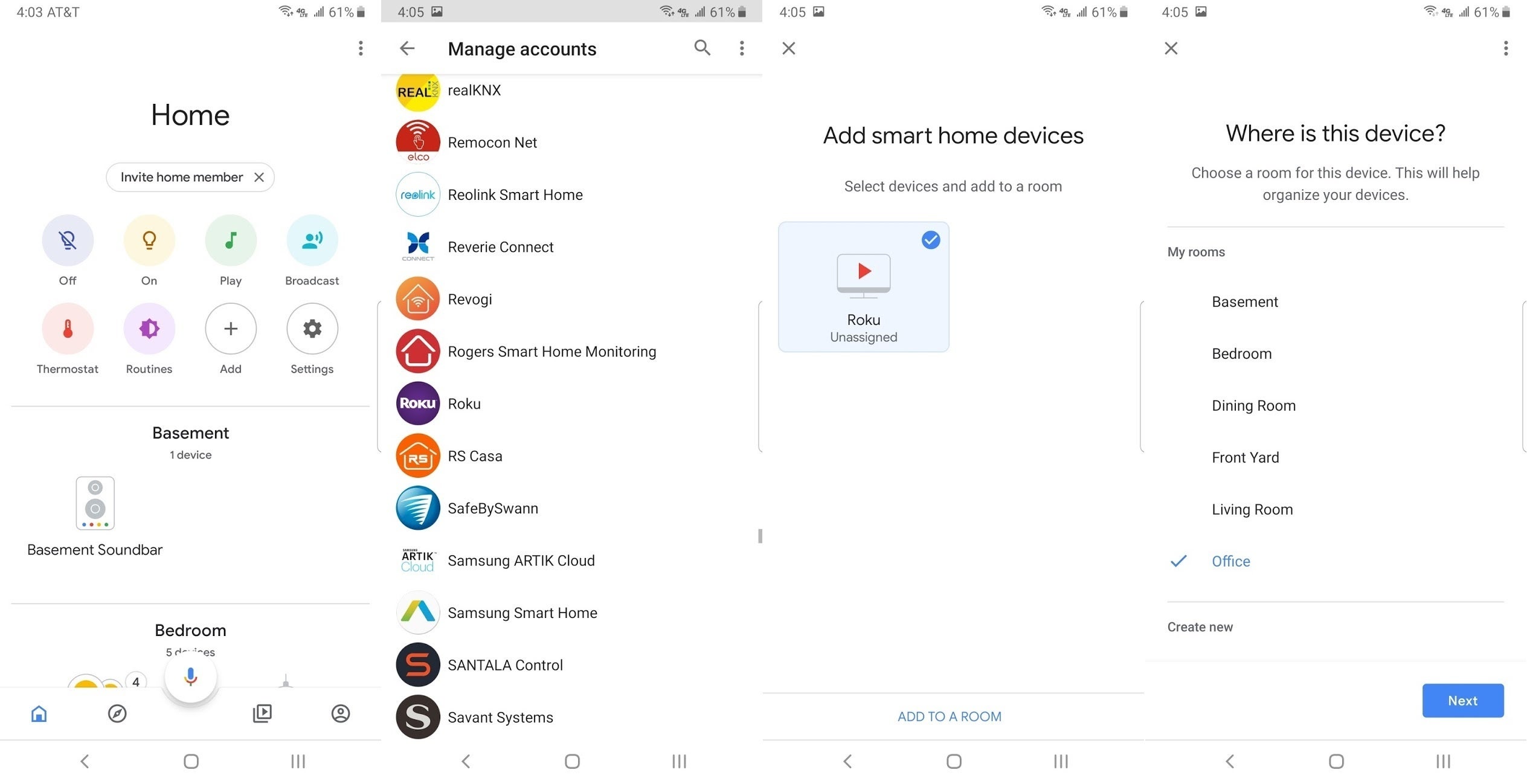
In addition to Alexa, Roku also supports Google Assistant, so you use voice controls with any Google Home speaker or the Google Assistant app. Here's how to set it up:
 Jared Newman / TechHive
- Open the Google Home app, and then hit the + (or "Add") button near the top of the Home section.
- Select "Set up device" and then select "Works with Google."
- Scroll down or search for Roku and then select it.
- Sign into your Roku account, hit "Accept and Continue," and then choose the Roku player you want to connect. (As with Alexa, Google Assistant can only control a single Roku device per account.)
- On the "Add smart home devices" screen, select your Roku and hit "Add to a Room." Then, choose the room where your Roku is located.
Google Assistant supports most of the same Roku voice commands as Alexa, and again, you must say "on Roku" for these commands to register. You can control playback, launch apps, and search, though the "Go Home" and "Replay" commands have not worked in my experience. Again, Google Assistant cannot open Netflix, play music through your Roku device, or launch specific videos.
More Roku voice tips
Although you can't use voice controls to launch specific streaming TV channels, the "launch [app]" command still comes in handy for apps with an auto-play component, especially if they remember the last channel you were watching. Try it with CBSN, Pluto TV, or Comet.
If you're watching one app and want to quickly switch to another, the "launch [app]" command will be faster than returning to the home screen and picking the other app from the list.
With Alexa and Google Assistant, you only need to say "on Roku" after your initial voice command. You can leave it out from subsequent commands unless they stop working.
If Alexa or Google Assistant stop working after you set them up, try restarting your Roku when it's convenient to do so.
As you can see, Roku's voice controls are still fairly limited, at least compared to Alexa on Fire TV, Google Assistant on Android TV and Chromecast, and Siri on Apple TV. Still, Roku is the only streaming TV platform that at least provides basic support for Alexa, Google Assistant, and its own voice remote, so hopefully its capabilities will improve over time. Until then, you can read up on even more Roku tips here.

Không có nhận xét nào:
Đăng nhận xét