You can add music to your PowerPoint presentations—and if done right, your audience will thank you. It can’t replace good content, of course, but strategically placed tunes can keep your audience’s attention and help drive your point home.
How to add music to your PowerPoint presentations
First, you must decide when you want music to be played: across all the slides in the slideshow; on demand (generally used with an interactive presentation); or triggered by an event that occurs only on specific slides.
For background music throughout the entire slideshow
1. Open your slide presentation
2. Select Insert > Audio > Audio on My PC
3. PowerPoint opens the Insert Audio dialog window and displays the default Libraries > Music folders. If your music files are in another folder, navigate to that folder now.
4. Scroll through your music library and select the music file you want to accompany this slideshow.
NOTE: Check the length of the tune to ensure that it's long enough to play throughout the entire presentation. If not, you can use a music editing program such as Audacity (free) or Ocenaudio (also free) to make the tune longer or shorter, or add some special effects such as Phaser, Echo, Fade In/Out, Reverb and more. You can also use some of the PowerPoint editing options such as the Loop feature, which plays the tune over and over until the slideshow ends (or stops); Trim (which shortens a tune); plus Fade In/Out and more.
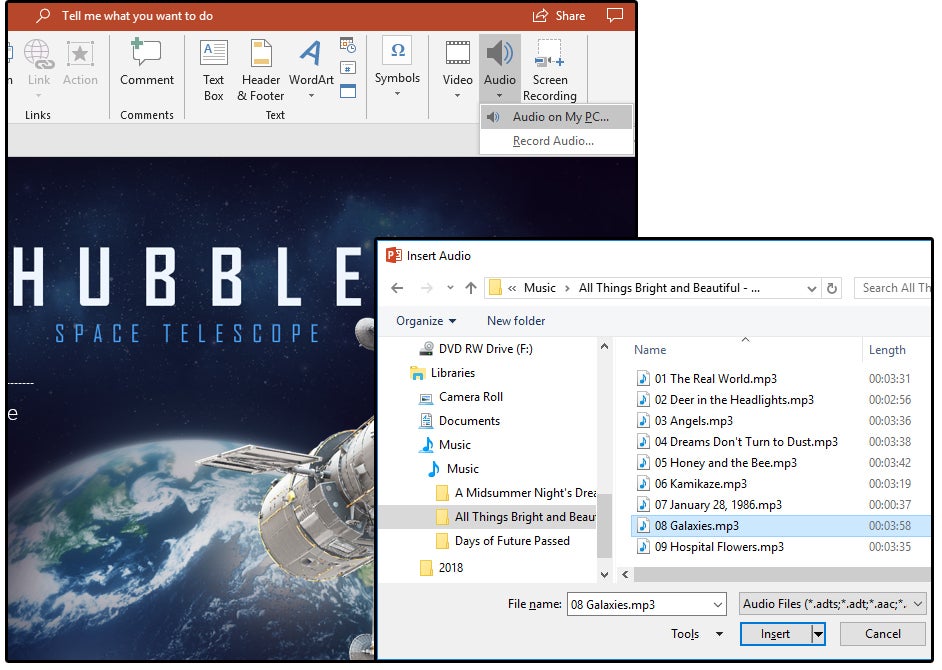 JD Sartain / IDG Worldwide
Insert an Audio/Music file into your slideshow
5. Click the Insert button and PowerPoint inserts a speaker button with playback music controls in the middle of the screen. Click the button and drag it to your preferred location.
6. When the audio/speaker button is selected/active, the Ribbon menu changes and displays the options under the Audio Tools > Playback tab. Choose the Play In Background button.
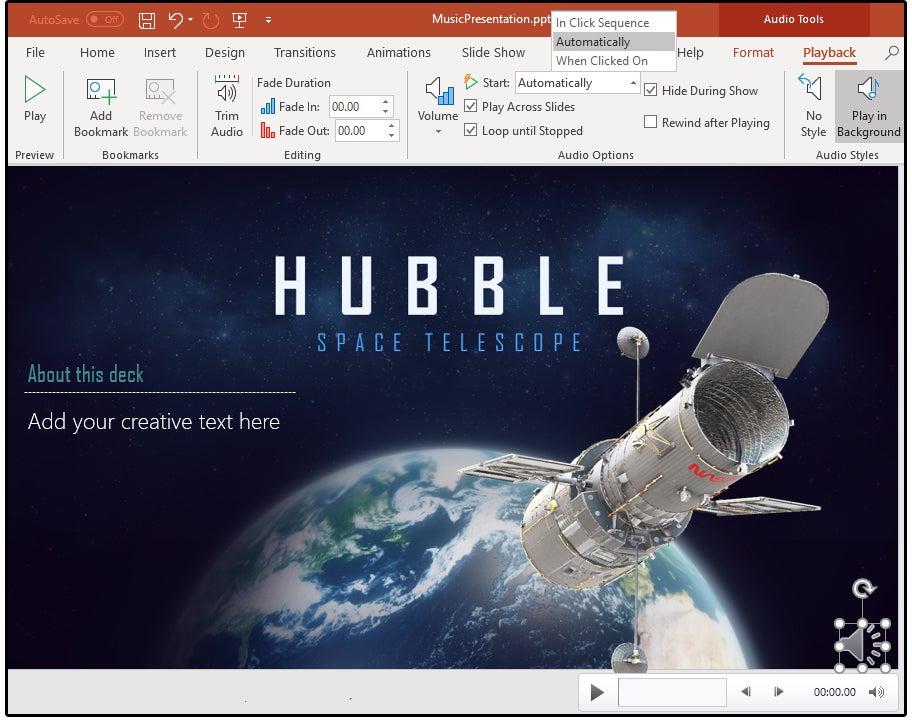 JD Sartain / IDG Worldwide
Choose the Play In Background button to play thru entire presentation
7. To play music on demand (generally used with an interactive presentation) or trigger music with an event that only occurs on specific slides, go to Audio Tools > Playback > Audio Options group > Start. Choose Automatically for playing background music across all the slides in the slideshow. Choose When Clicked On for music on demand, and In Click Sequence for music played after a trigger.
Play around with the features in both PowerPoint and one of the free music editing tools to create some very unique, inventive sounds.

Không có nhận xét nào:
Đăng nhận xét